

Chapter 4
Designing flows
The flow designer is where you build the conversation: a canvas of steps joined by connections.
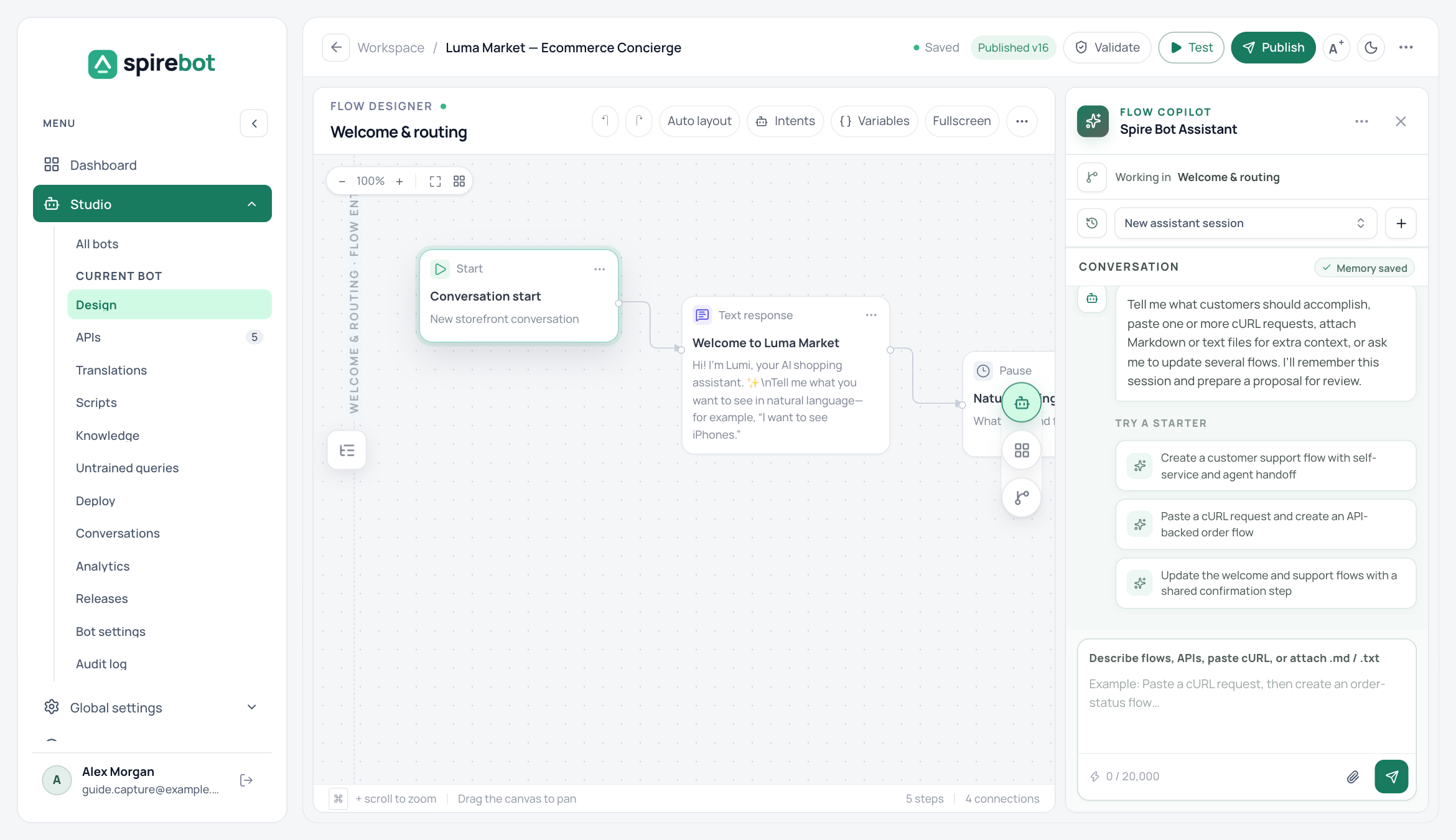
The designer at a glance
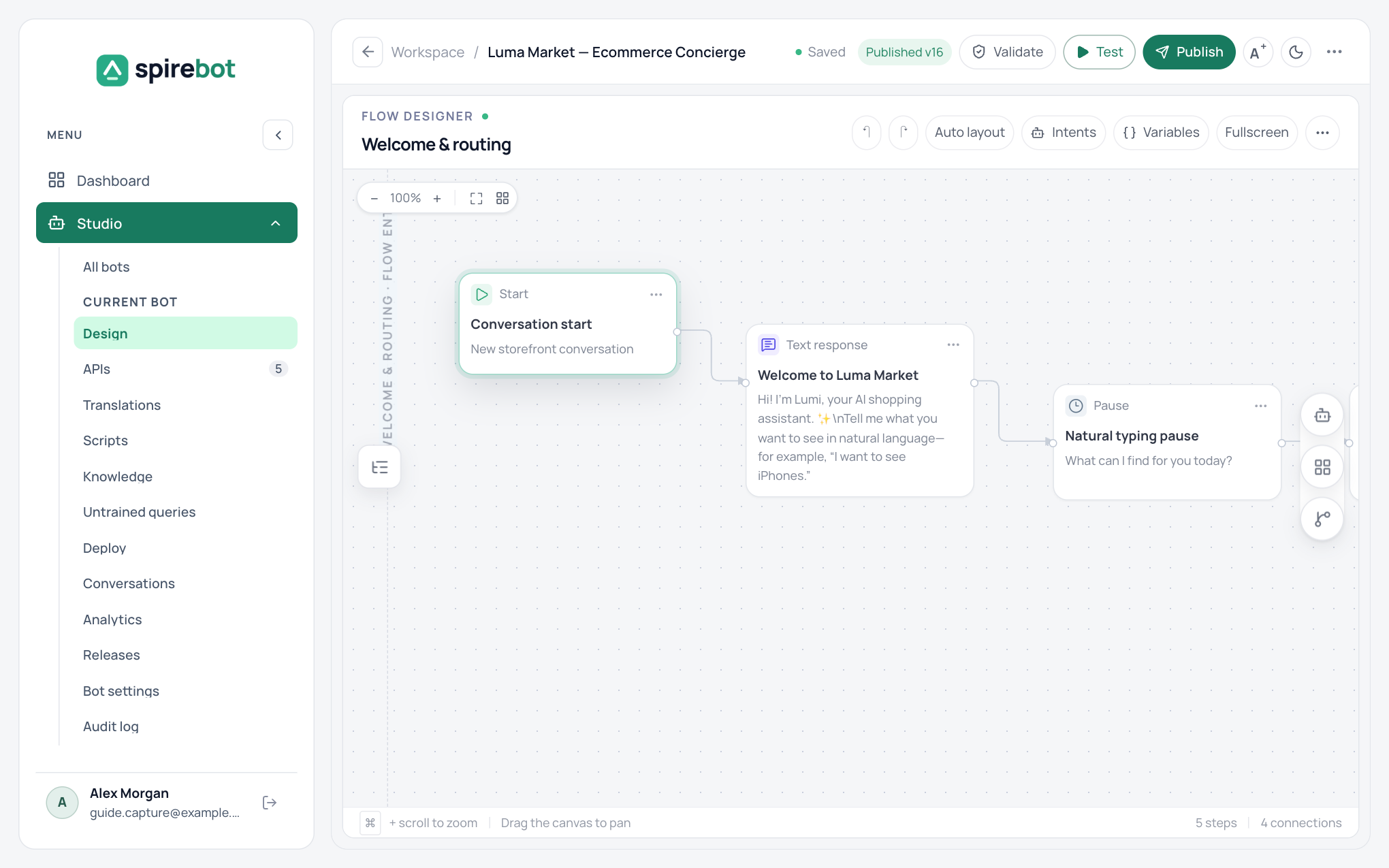
| Area | What it does |
|---|---|
| Top bar | Shows the bot name, the save status (Saved), and the published version. Validate checks the draft, Test opens the playground, and Publish releases the draft. |
| Flow toolbar | Undo and redo, Auto layout to arrange the steps, Intents, Variables, Fullscreen, and more flow options. |
| Canvas | Scroll to zoom and drag to pan. The zoom controls at the top left include Fit all steps in view. |
| Left edge | Opens the Flows panel. |
| Right edge | Opens the Spire Bot Assistant, the Components panel, and the Outline panel. |
| Status bar | Shows the number of steps and connections in the flow. |
Publish acts immediately. There is no confirmation step: the saved draft becomes the live version as soon as you select it. Validate and test first.
Flows
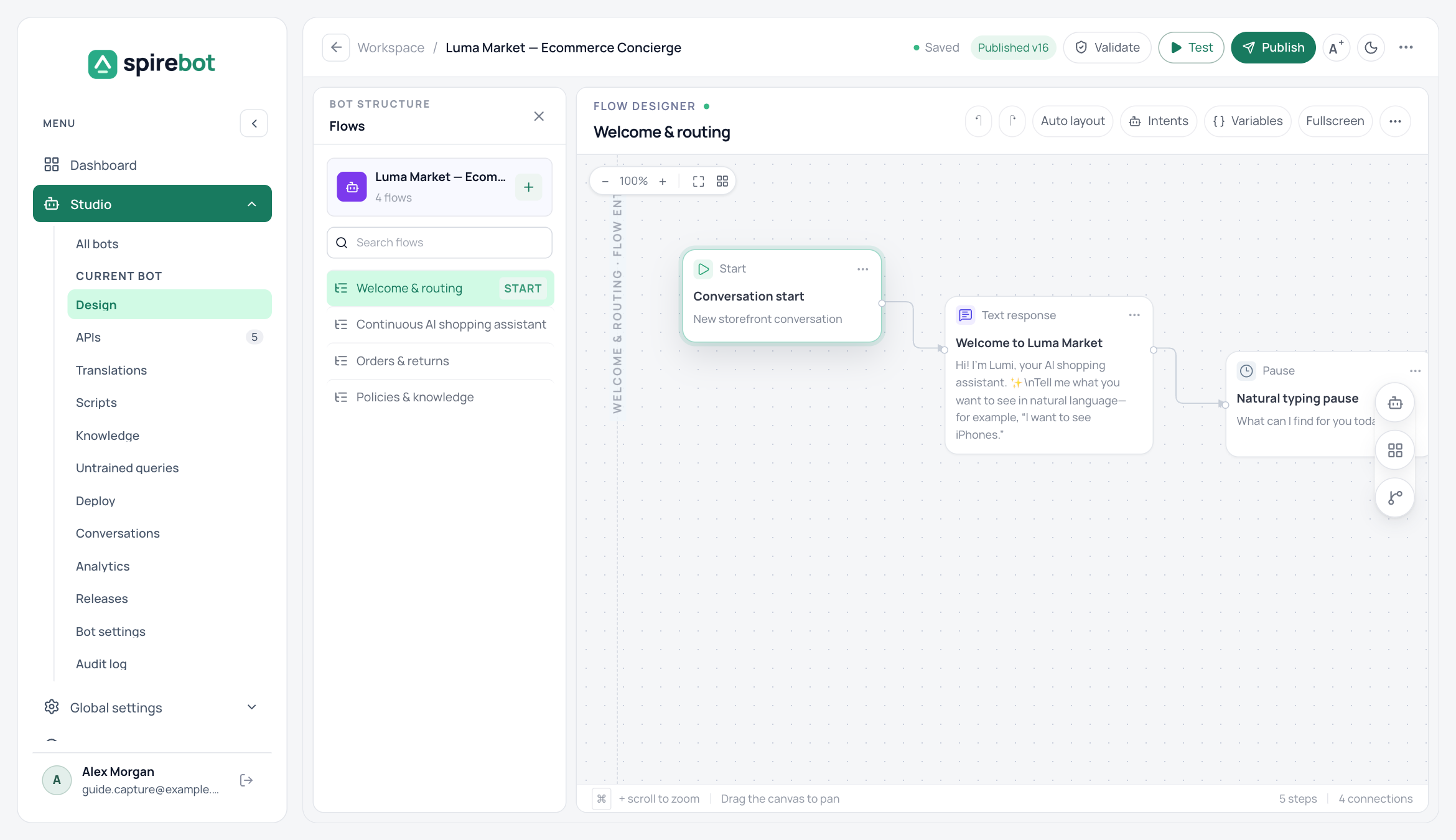
A bot is made of several flows, each handling one goal. Open the Flows panel to search flows, switch between them, or create a new one. The flow marked START is where every conversation begins.
Add and connect steps
- Open the Components panel from the right edge of the canvas.
- Find the step you need. Use the search box if the list is long.
- Drag the step onto the canvas.
- Drag from the connector on one step to another step to connect them.
- Select the step and complete its properties.
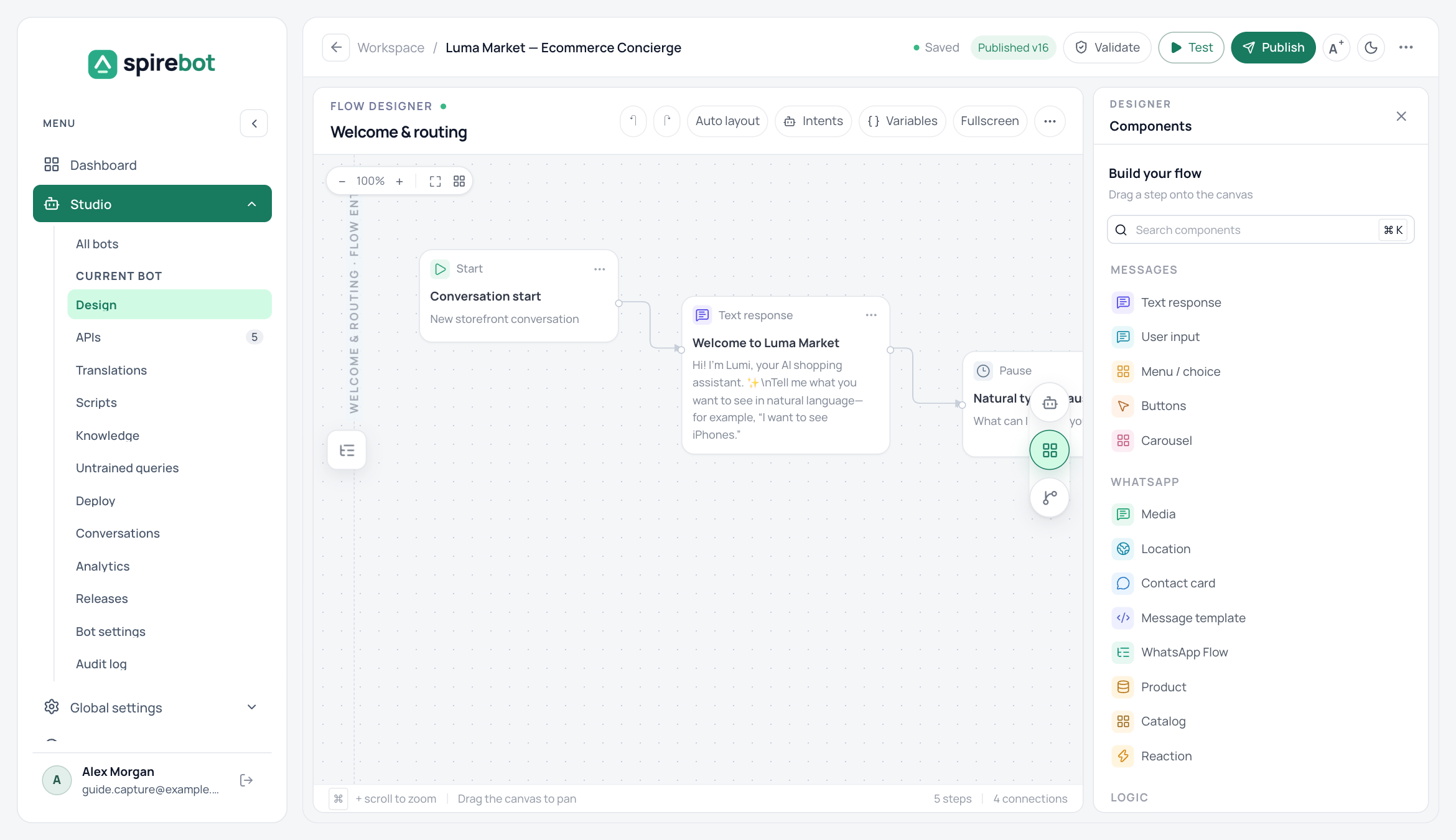
| Group | Steps | Use them to |
|---|---|---|
| Conversation | Text response, User input, Menu / choice, Buttons, Carousel, Pause | Send messages and collect answers. |
| Media, Location, Contact card, Message template, WhatsApp Flow, Product, Catalog, Reaction | Use formats specific to WhatsApp. | |
| Logic | Condition, AI Router, Set Variable, Jump | Branch on rules, classify natural language, store values, and reuse another flow. |
| Actions | API Call, Knowledge, Run Script, Live Agent | Call external systems, answer from your documents, transform data, and hand over to a person. |
Edit a step
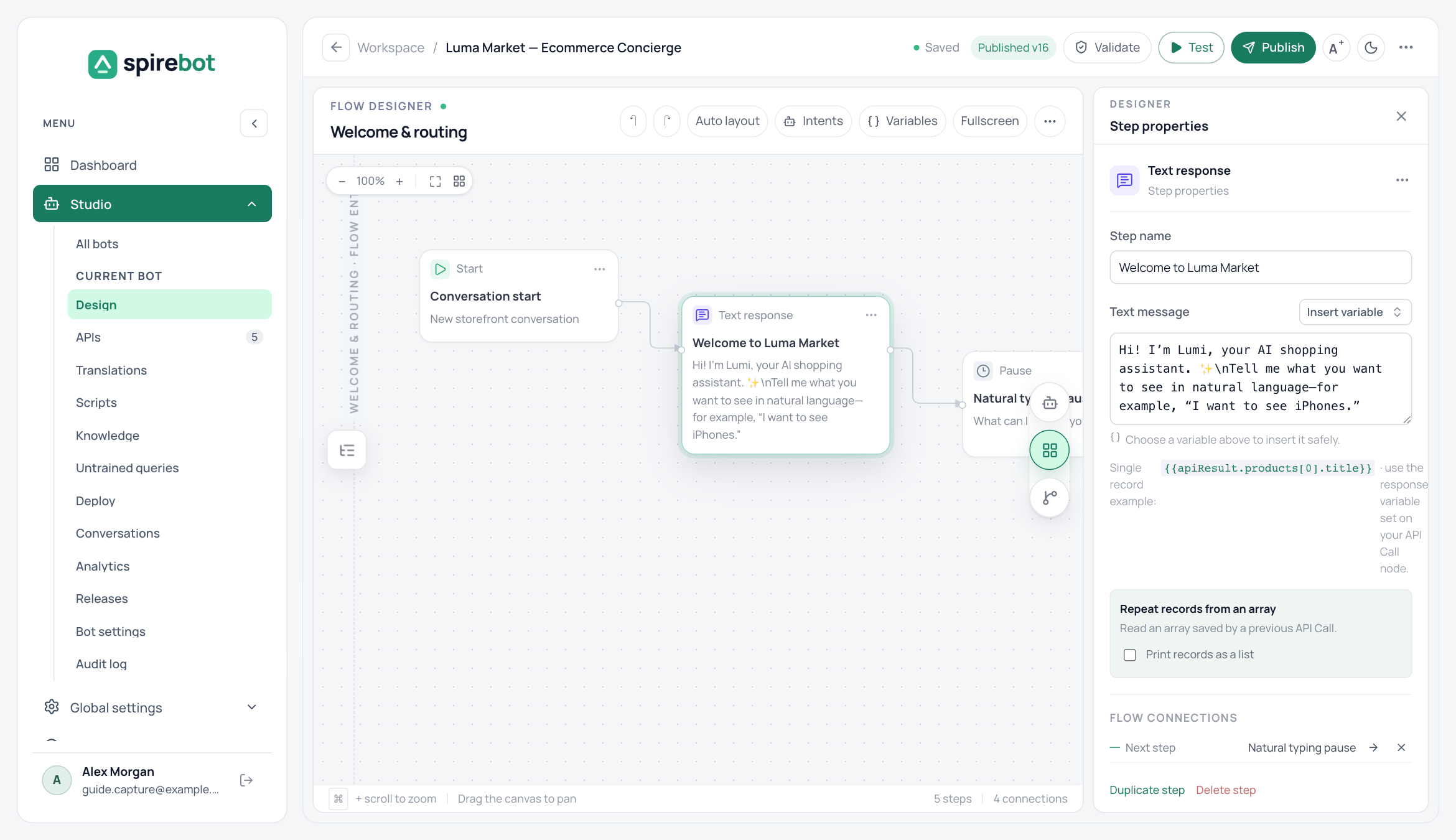
Select a step to open Step properties. Give the step a name that describes its outcome, then fill in its content. Insert variable adds a placeholder such as {{customer_id}} at the cursor. Flow connections shows where the step leads next. Duplicate step and Delete step are at the bottom of the panel.
The Outline panel lists the steps of the current flow in order, which is a quick way to move around a large flow.
Variables
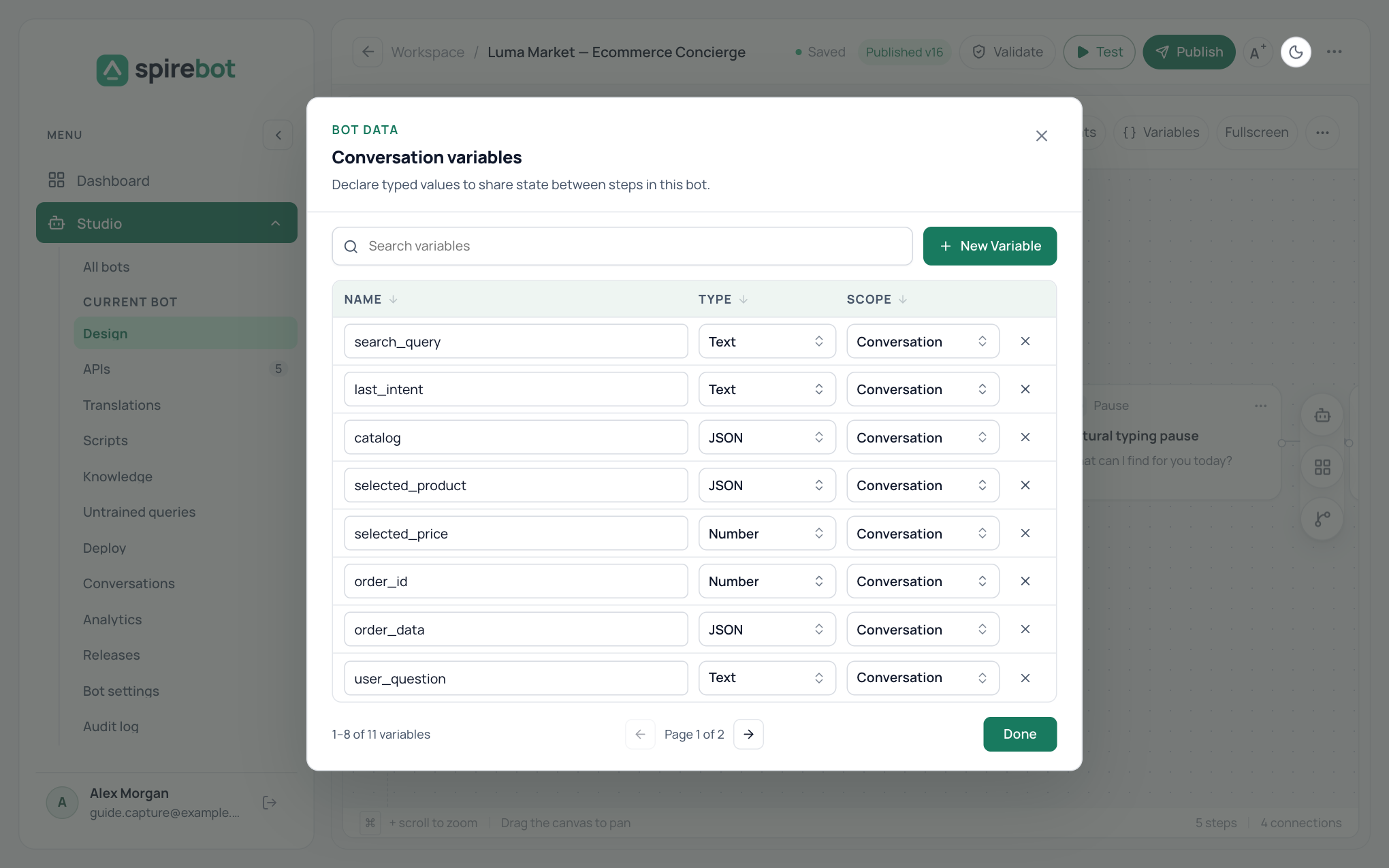
Variables carry values between steps. Declare each one before a step uses it.
- Select Variables in the flow toolbar.
- Select New Variable.
- Enter a unique name, choose a type such as Text, Number, or JSON, and choose a scope.
- Select Done.
Use conversation scope for values that must last for the whole session, and turn scope for short-lived values. Use readable names such as customer_id, order_total, and needs_handoff.
Intents
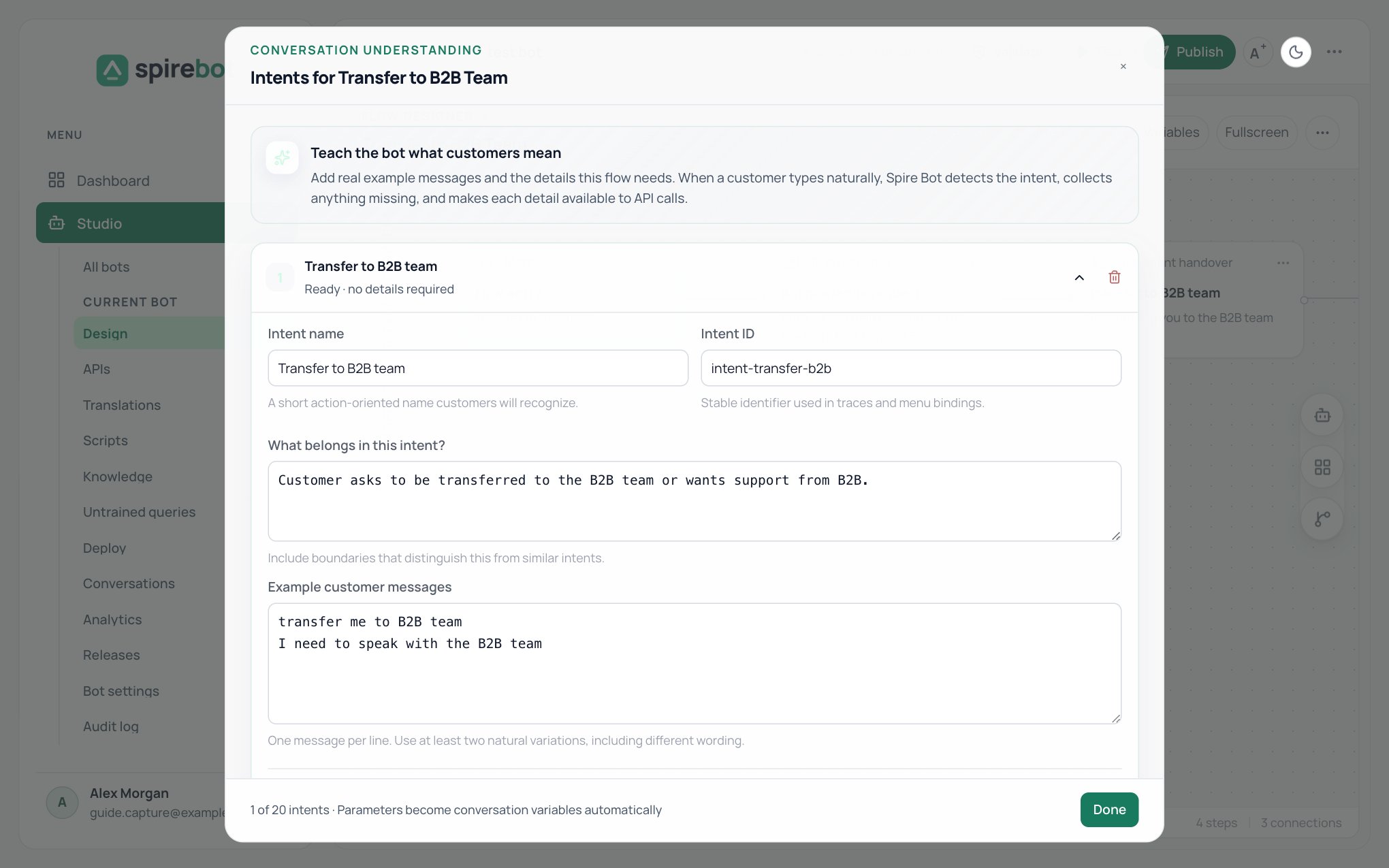
An intent lets a customer reach a flow by typing what they want instead of choosing a menu option.
- Open the flow and select Intents in the flow toolbar.
- Select Add intent.
- Enter a short name, and describe what belongs in the intent and what does not.
- Add at least two example messages with different wording, one per line. You can add up to twenty.
- Under Details to collect, add anything the flow needs, such as an order number. The bot takes it from the message or asks for it.
- Select Done.
- Mark a detail as sensitive to keep its value out of traces and transcripts.
- When two intents fit equally well, the bot asks the customer which one they meant.
- A flow can have up to 20 intents. Collected details become conversation variables automatically.
Spire Bot Assistant
The assistant drafts changes for you. Open it from the right edge of the canvas and describe what you want: a new flow, a change to a step, or an API to add. You can also paste a cURL command.
- Start from one of the suggested prompts, or type your own.
- Attach up to 5 Markdown or text files (.md, .txt) with the paperclip, or drop them on the prompt box, to give longer requirements. Files stay attached until you remove them.
- Attached files are context only. Paste a cURL command into the prompt itself to create an API, and keep passwords and keys out of attached files.
- Use Assistant options to limit what it may change.
- Review each proposal before you apply it. Proposals change the draft only; publishing stays with you.
- Validate and test the result as you would any flow built by hand.
Design guidelines
| Do | Avoid |
|---|---|
| Name flows and steps by outcome. | Hiding business rules in message text. |
| Ask one question at a time. | Loops without a retry limit. |
| Confirm important writes or transactions. | Assuming an API always succeeds. |
| Give every branch an Else or fallback path. | Collecting data that is not required. |
| End with a result and the next available action. | Leaving steps disconnected from the entry. |