

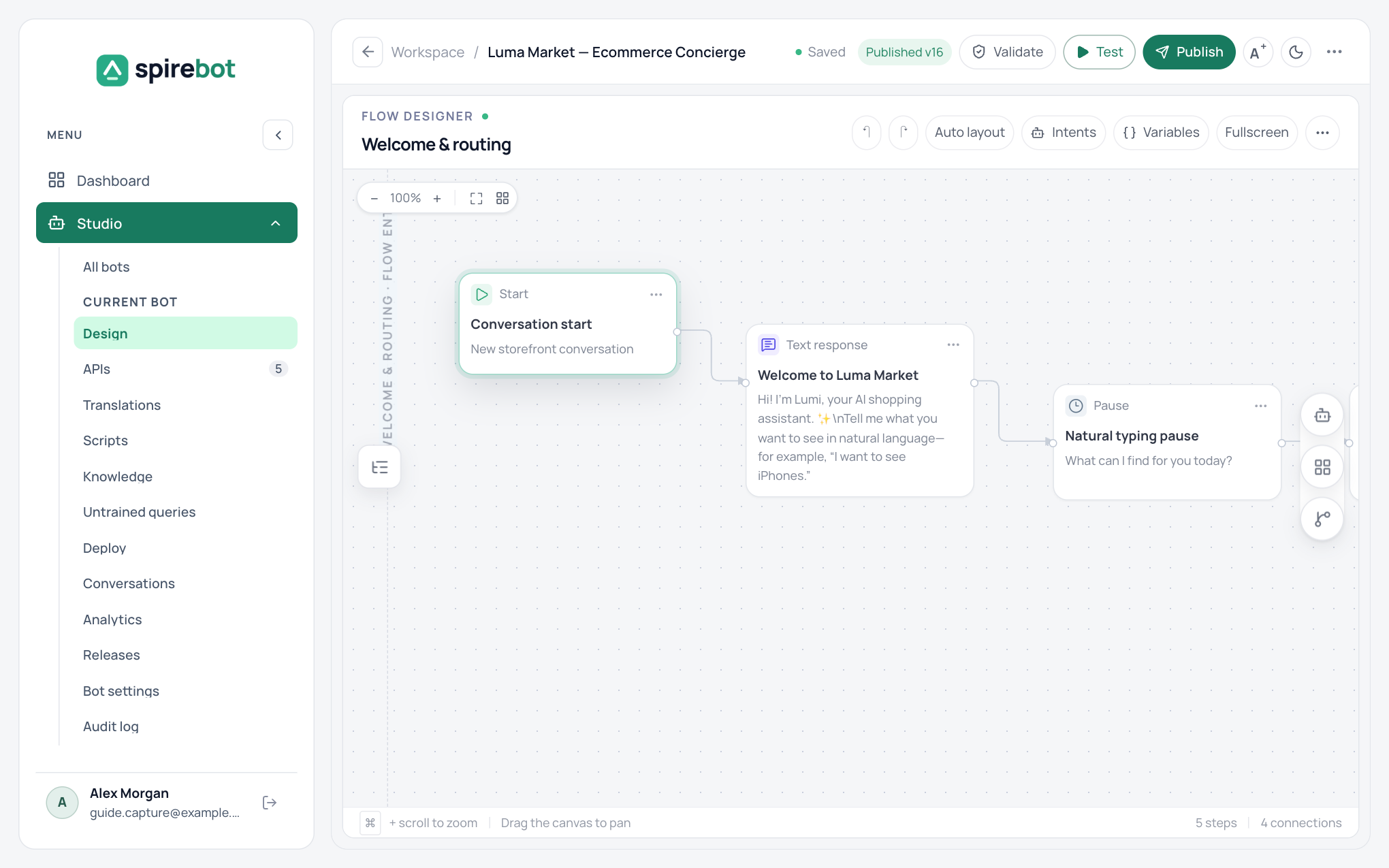
Visual flow designer
Build the conversation on a canvas. Drag steps from the Components panel, connect them, and fill in their properties. Undo, redo, auto layout, and an outline panel keep large flows manageable.
A bot is made of several flows, each handling one goal, and every conversation begins at the Start flow. Steps cover messages, user input, menus, buttons, carousels, conditions, variables, and jumps to other flows.
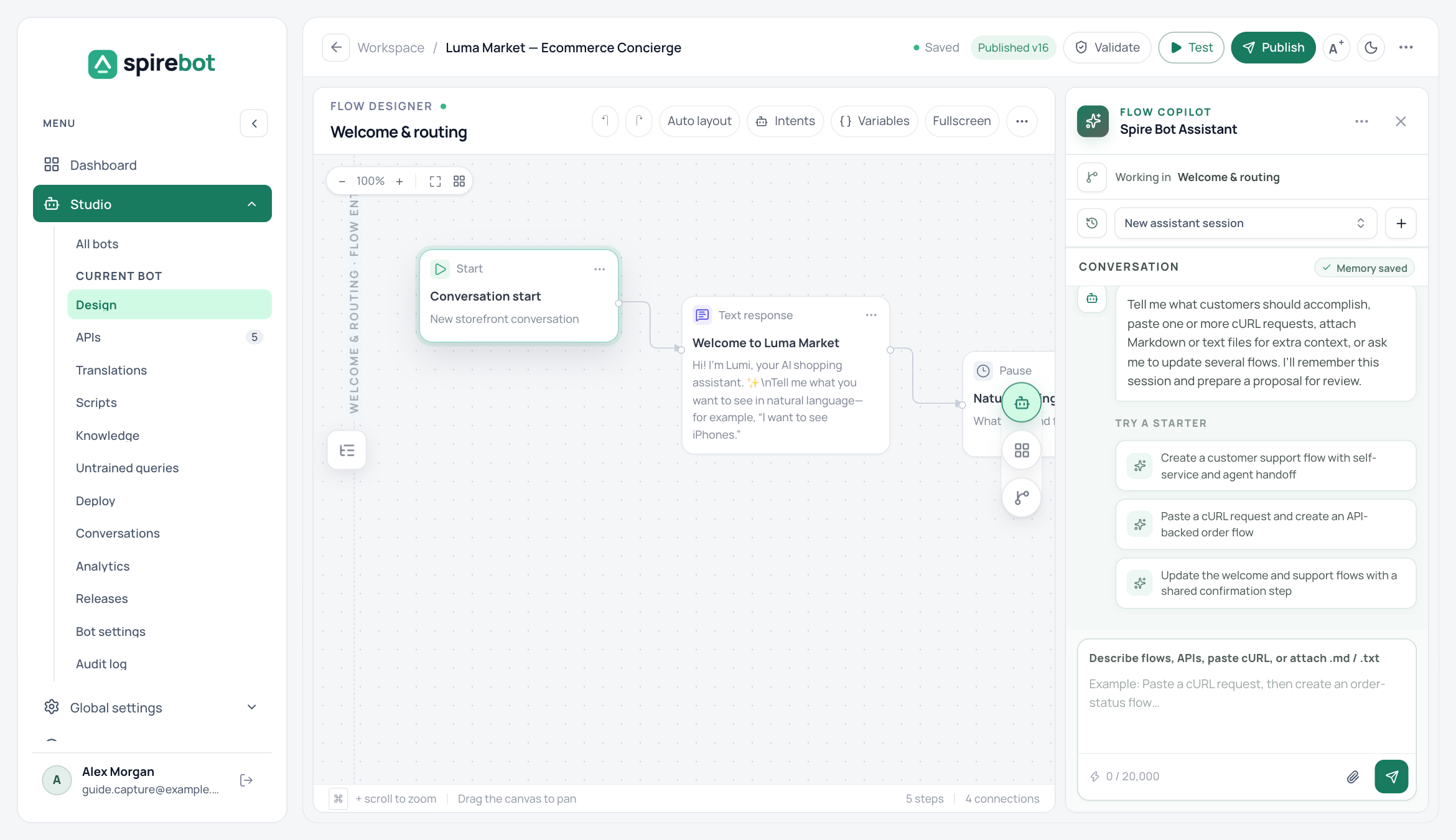
Spire Bot Assistant
Describe what you want, such as a new flow, a change to a step, or an API to add, and the assistant drafts it. You can paste a cURL command or attach text files with longer requirements.
Each result is a proposal. You review it and choose to apply it to the draft, and you can limit what the assistant may change. It never publishes on its own.
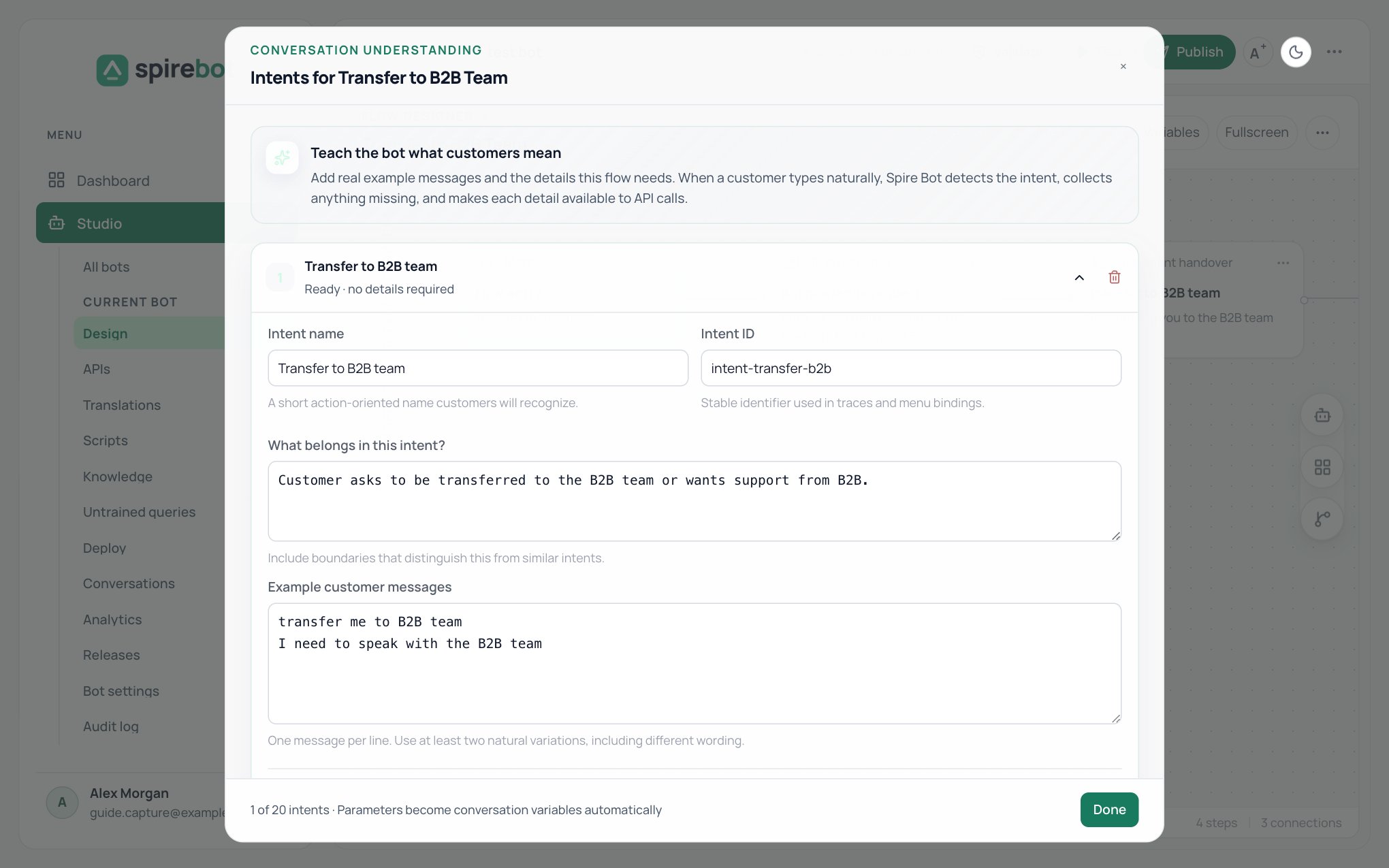
Intents
An intent lets a customer reach a flow by typing what they want instead of picking from a menu. Give each intent a description and a few example messages.
Intents can collect typed details, such as an order number or a date, taking them from the message or asking one at a time. When two intents fit equally well, the bot asks the customer which one they meant. Details marked sensitive stay out of traces.
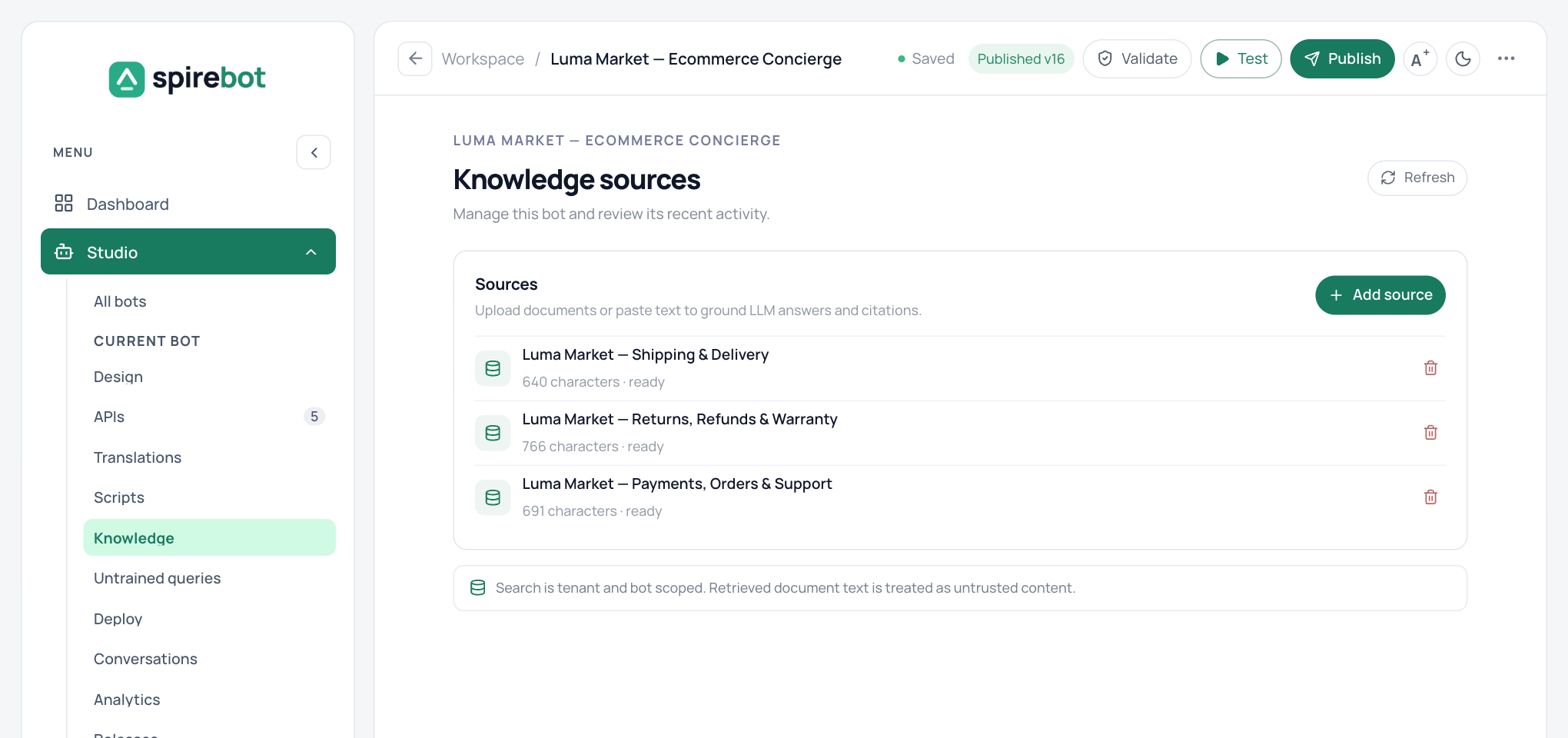
Knowledge answers
Paste text or upload PDF, Word, and PowerPoint documents, and a Knowledge step answers customer questions from them.
Each drafted answer is checked against the excerpts it came from. If a claim is not supported by your content, the customer gets the guarded response you wrote for that case instead of a guess.
API connections, API library, and scripts
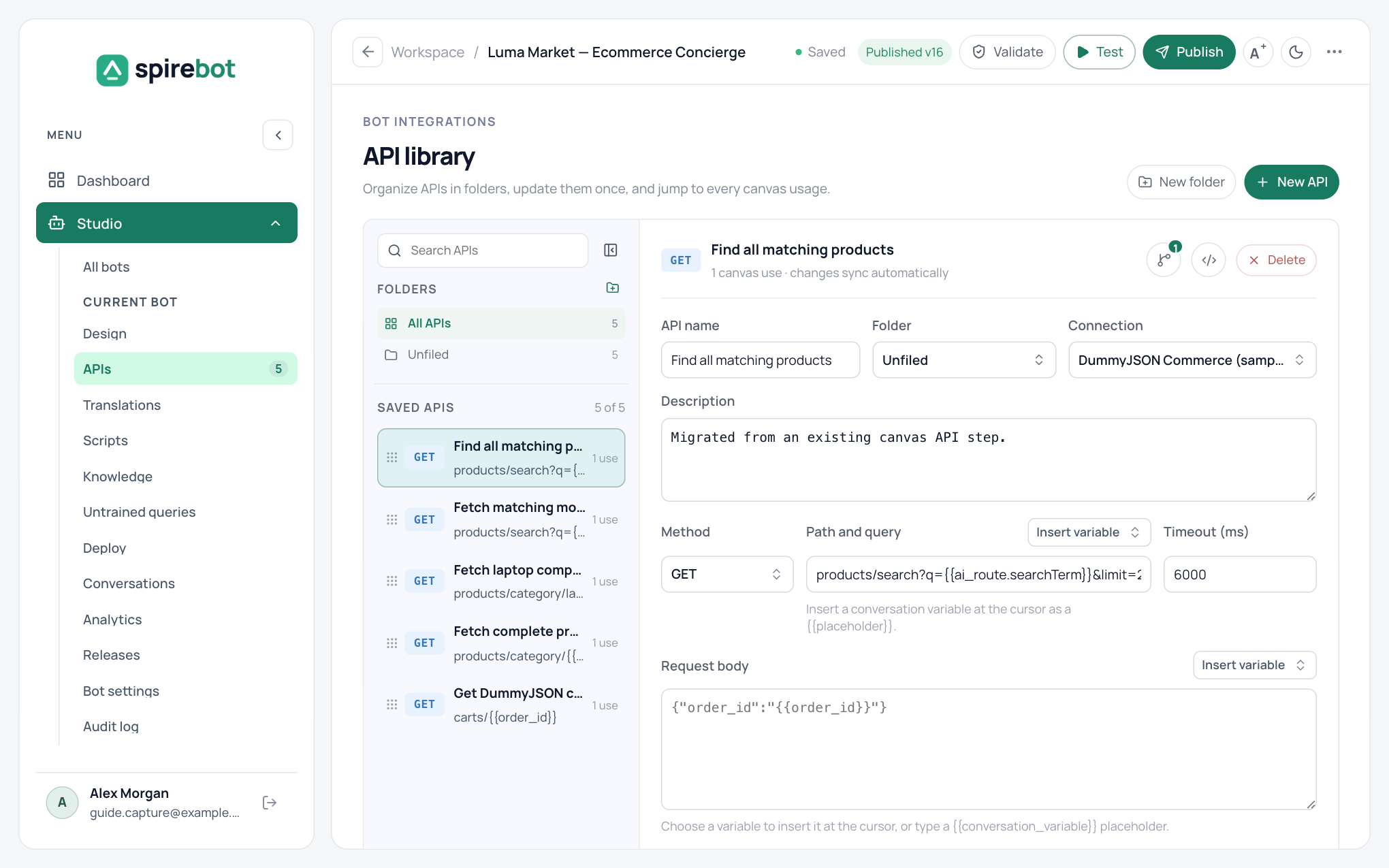
A connection stores the base URL and credentials for one of your systems. Connections belong to the workspace, credentials are encrypted when stored, and bots can call only the hosts you have saved.
Define each request once in the bot's API library, test it with sample values, and reuse it in any API Call step. You can import a request from a cURL command. Scripts transform data between steps; they run in a restricted sandbox with no network or file access and a strict time limit.
Translations
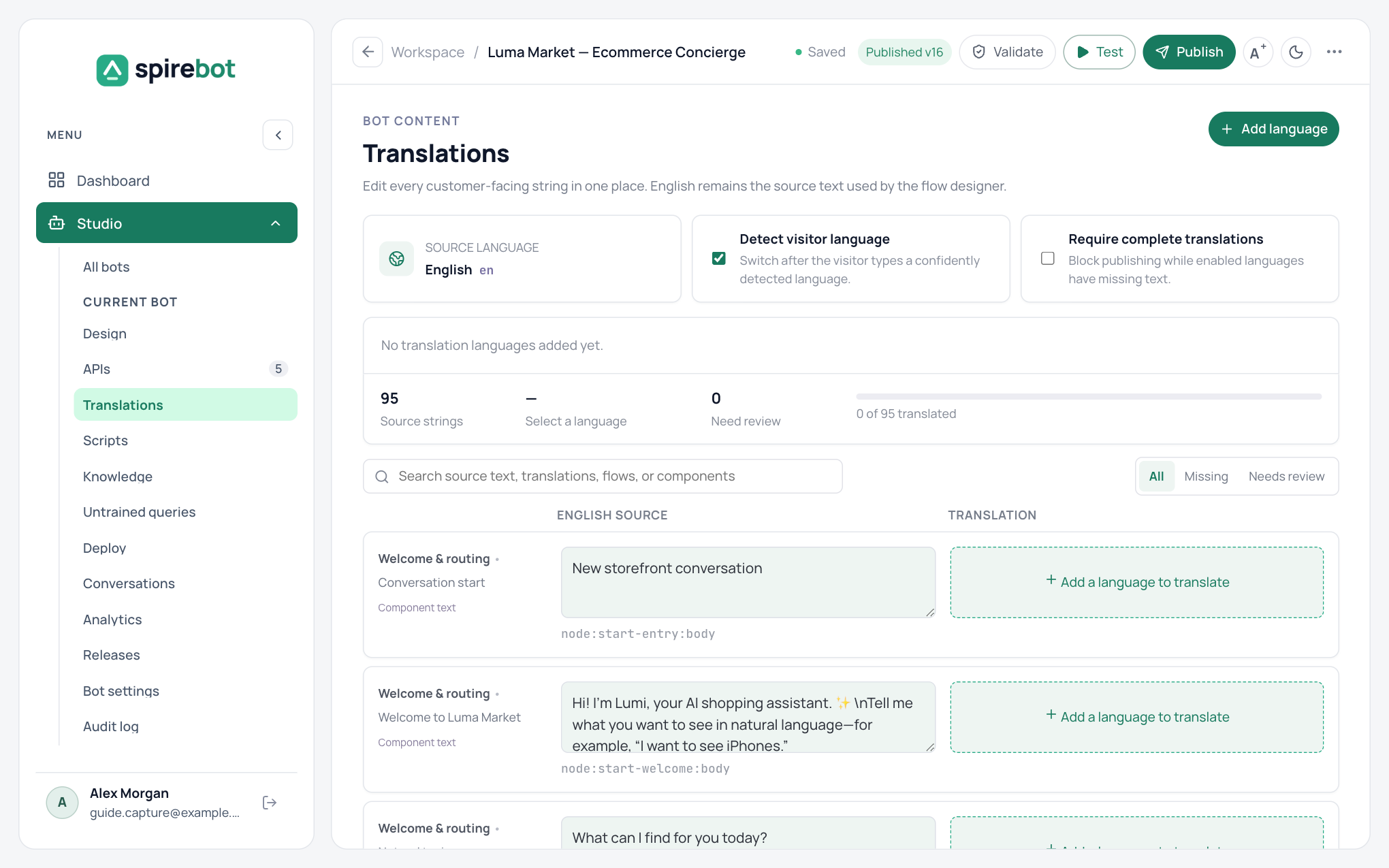
The Translations page lists every customer-facing text in the bot. Add a language and enter the translation beside each source text, with filters for what is missing or needs review.
The bot can detect the customer's language and switch to it, and you can block publishing while an enabled language has missing text.
Validation and the draft playground
Validate checks the structure of the draft and lists every issue, such as a disconnected step, an invalid branch, an undeclared variable, or an incomplete translation.
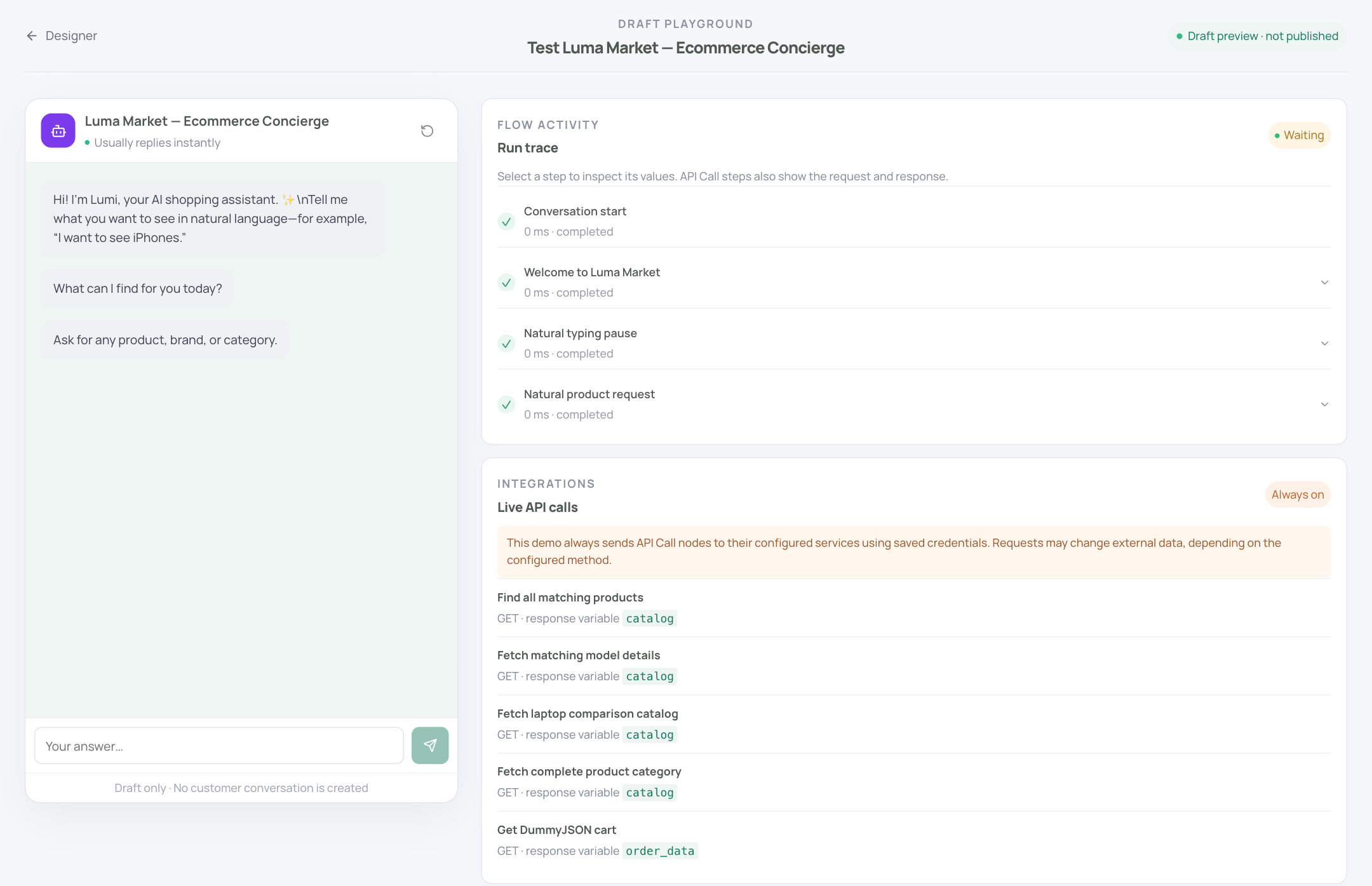
The playground runs the draft as a conversation and shows a run trace of every step with its status, duration, and values, so you can rehearse happy paths, wrong inputs, and failures before anything goes live. Test runs never create a customer conversation.
Releases and rollback
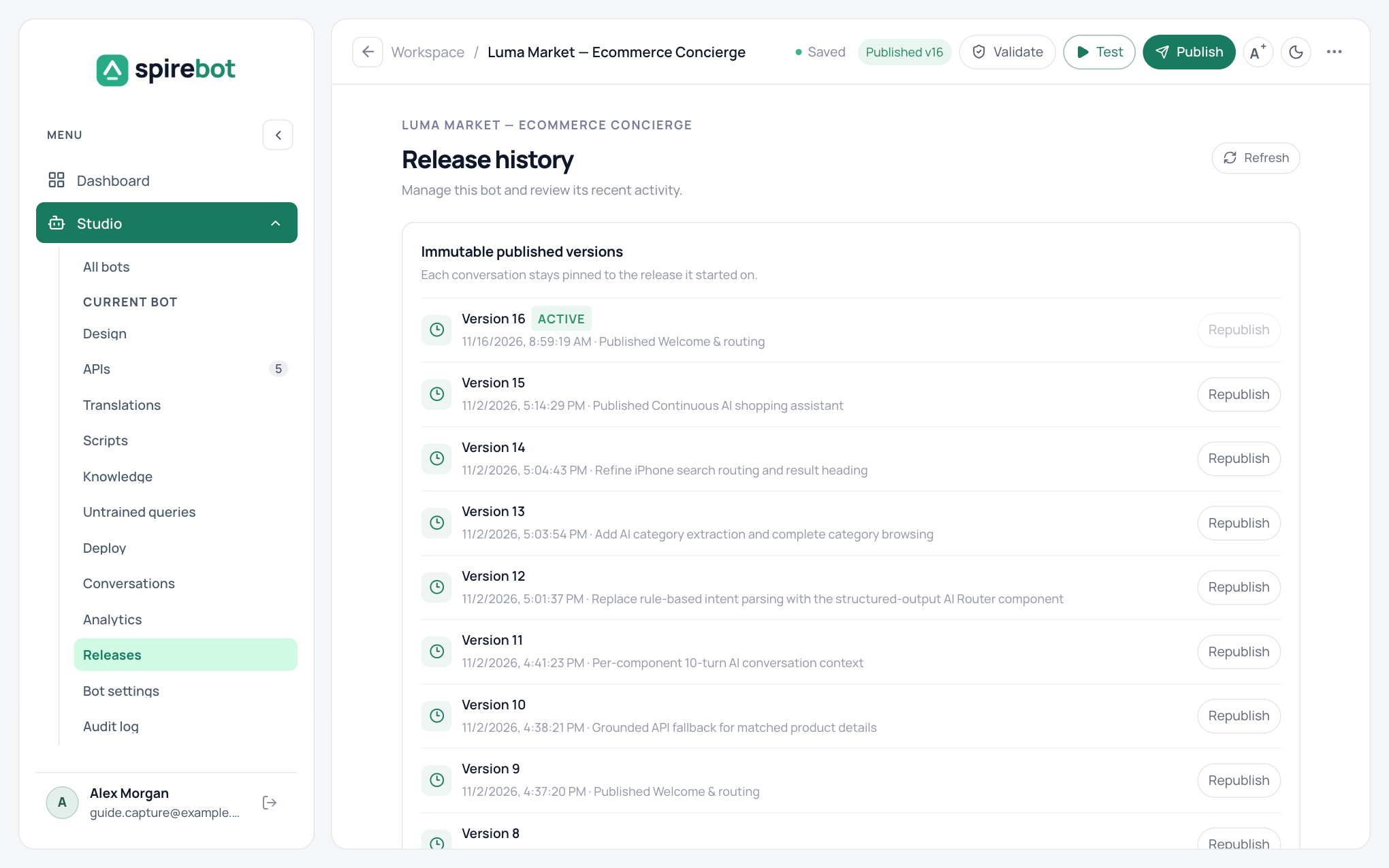
Publishing turns the saved draft into a numbered release that cannot be edited. The release history lists every version with its date and note, and you can republish an earlier one to make it live again.
A conversation stays on the release it started with, so publishing never changes a chat that is already in progress.
Web chat widget
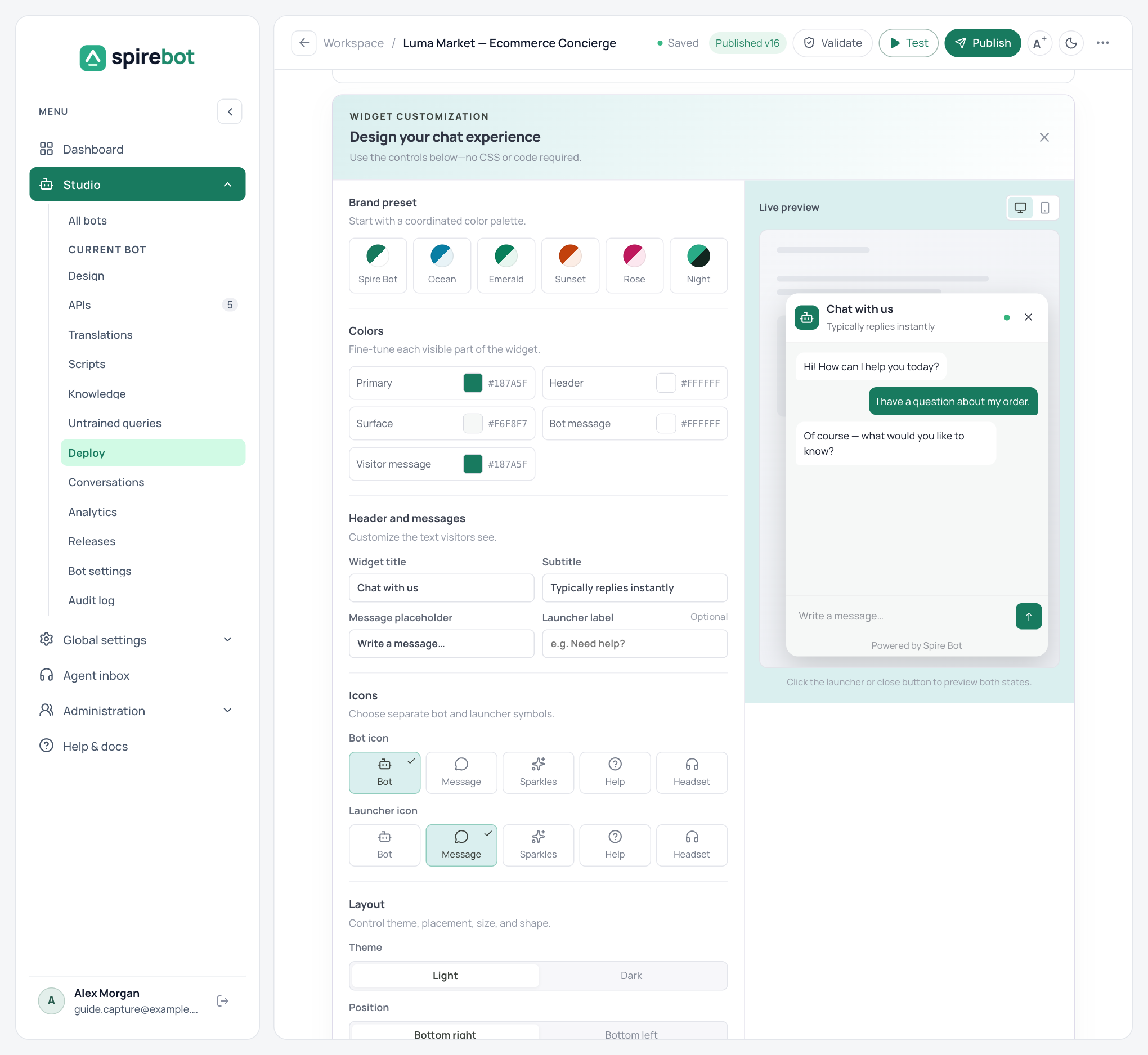
Add the bot to your website with one embed script, limited to the website addresses you allow. The widget designer sets brand presets, colours, title, icons, position, size, and light or dark theme, with a live preview and no code.
With customer memory switched on, the bot remembers facts, preferences, and past issues for each customer. Your website can pass a signed customer ID so that memory follows a signed-in customer across devices.
WhatsApp Business
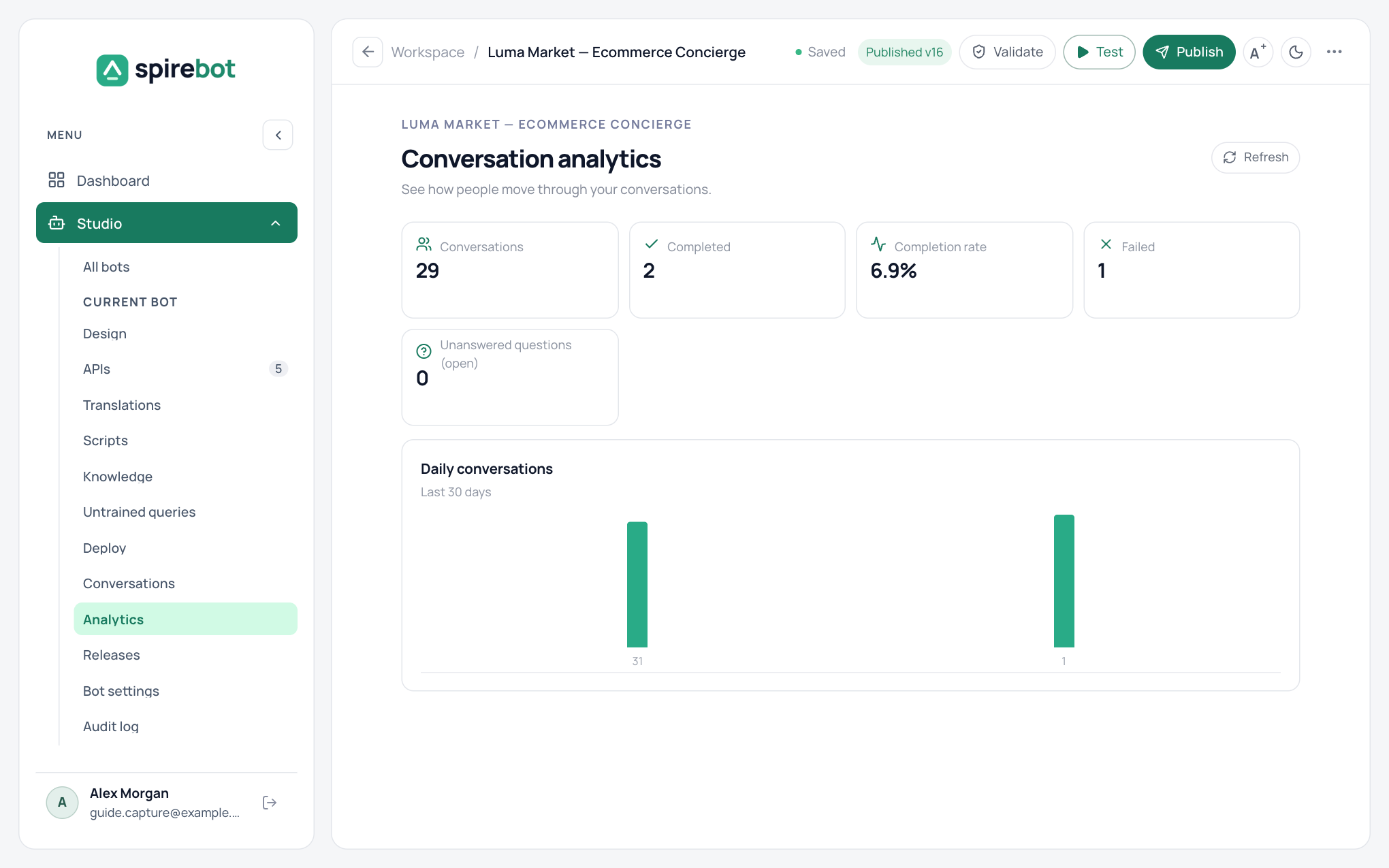
Connect your Meta account from the Deploy page and choose the business phone number to deploy to. Spire Bot syncs your phone numbers, approved templates, WhatsApp Flows, and catalogs.
The designer has WhatsApp steps for media, locations, contact cards, message templates, Flows, products, catalogs, and reactions. Text, buttons, lists, and carousels adapt to WhatsApp's formats and limits, and the 24-hour customer service window is enforced.
Live support
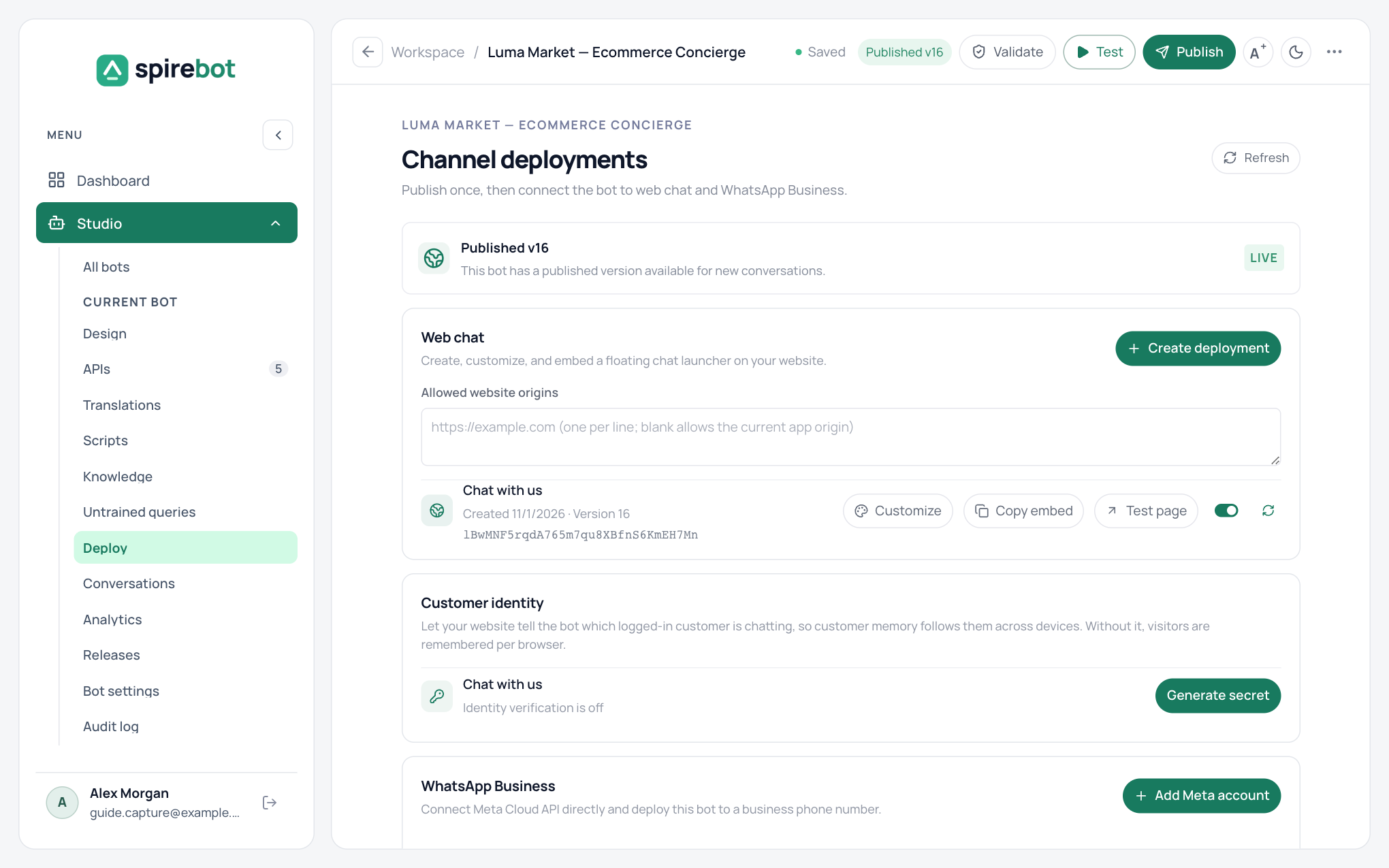
A Live Agent step places the conversation in a department queue. Agents claim chats from a shared inbox, read the transcript, reply with canned responses for common answers, and tag each chat when they resolve it.
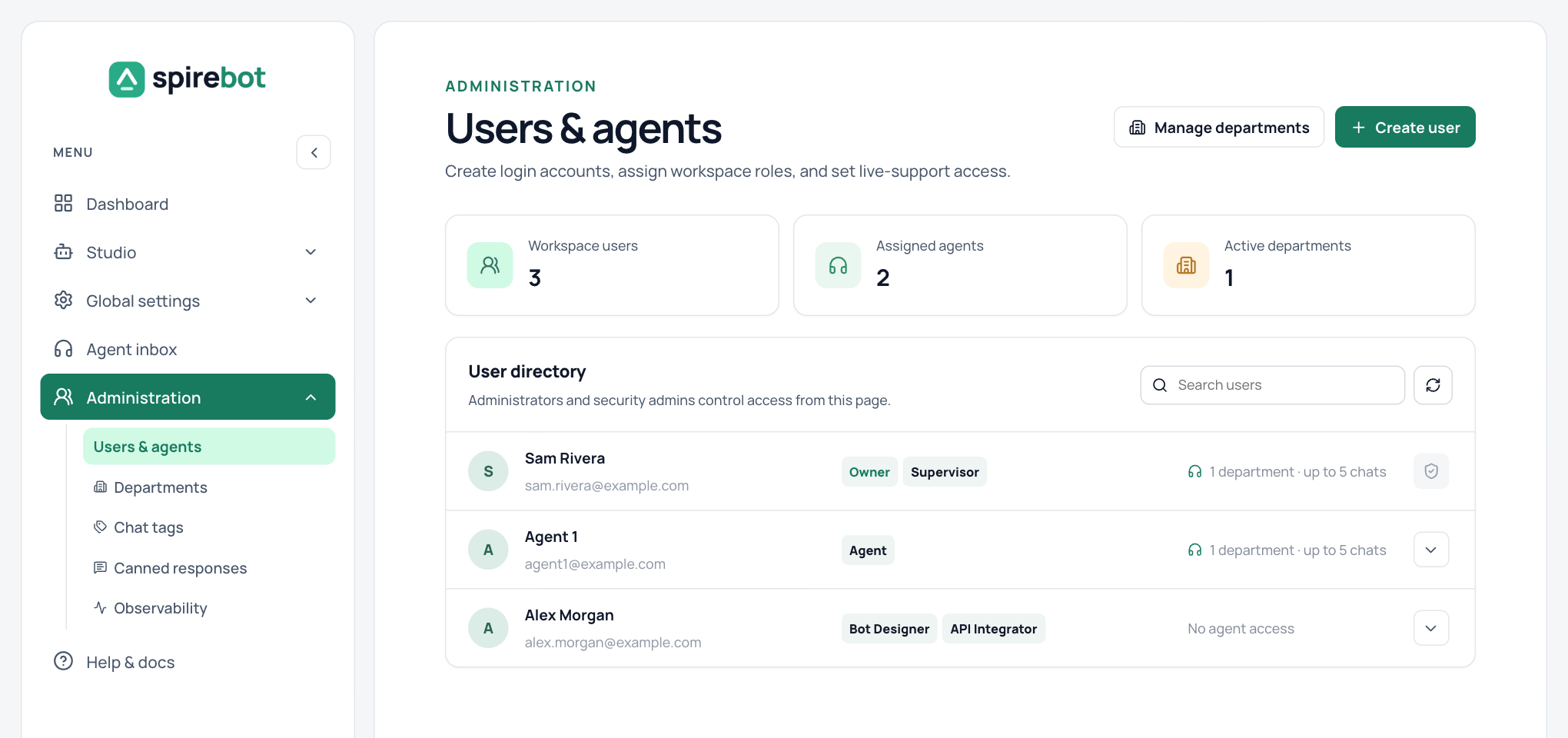
Administrators and Security Admins set each agent's departments and how many chats they can handle at once. With sentiment switched on, the inbox shows the customer's mood. Customers see the agent's chosen nickname and avatar.
Conversations, analytics, and untrained queries
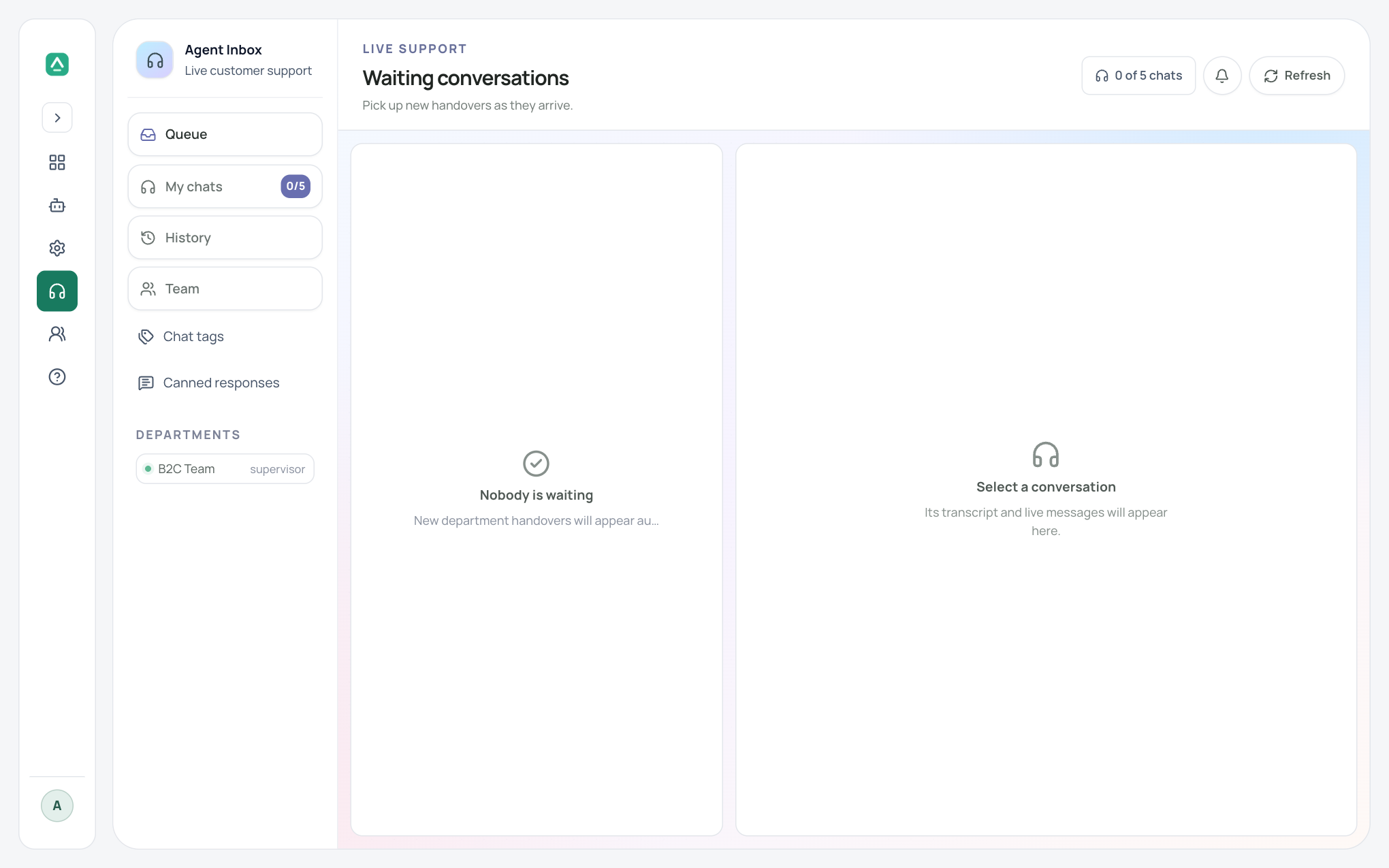
Open any conversation to see the trace of the steps it ran, with sensitive values removed. Analytics shows the number of conversations, the completion rate, failures, and daily volume for the last 30 days. Untrained queries groups the questions the bot could not answer, and you can turn one into a knowledge answer or an intent example from the same page.
The Observability page shows the health of the database, cache, AI model, event delivery, and background workers, with an error history that never contains customer text or credentials.
Roles and audit log
Each person is given the roles that match their job, and the menu shows only what those roles allow. Workspace roles are Administrator, Bot Designer, API Integrator, Security Admin, and Analyst; Agent and Supervisor are set per department. A person can hold several roles.
Each bot keeps an audit log of who published, resolved, tagged, or changed something, and when. It also records every role change.
Want to see it working?
Ask for a demo and we will build a flow with you.